Neat Download Manager Brave Extension: Install and Test Link Capture
Yes, Brave can use the Neat Download Manager browser extension through its Chromium extension path. Install and open the NDM desktop app first, then use the official Chrome Web Store listing in Brave and test one ordinary direct file.
This guide answers the Brave-specific setup question without presenting a Brave installer that the NDM developer does not publish. It separates browser handoff, desktop downloads, and website restrictions so a failed capture has a useful next step.
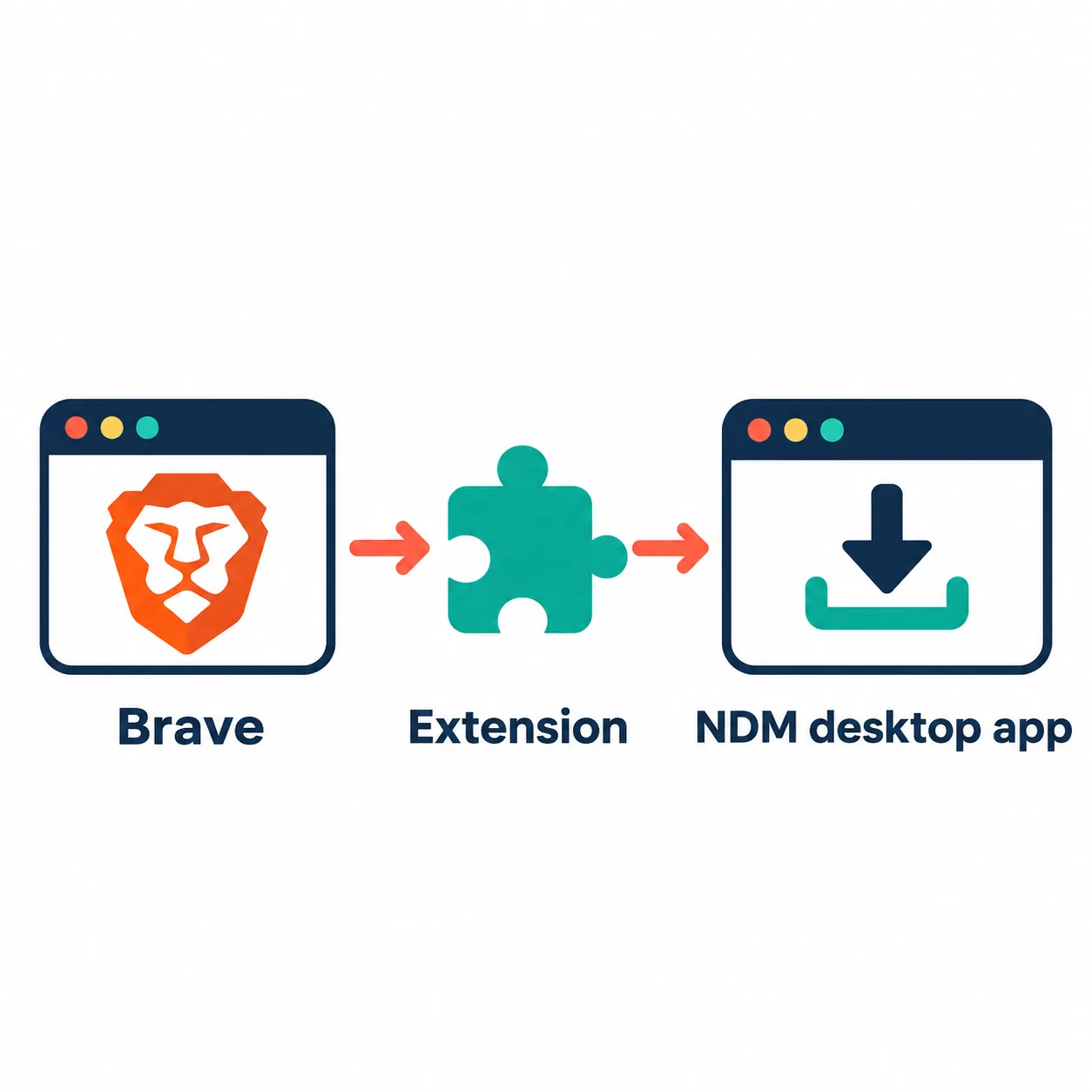
Editorial explanatory diagram, not a real Brave or NDM screenshot. Brave supplies the browser context; the extension hands a compatible link to the desktop app.
The Chrome Web Store and official NDM links use a 15-second countdown before opening the source page.
The Short Answer: Brave Uses the Chromium Extension Route
The Neat Download Manager extension for Brave is a browser integration question, not a separate Brave version of NDM. Brave is Chromium-based, so its normal extension workflow can reach the official Chrome Web Store listing when the browser allows that source. The desktop application still performs the download; the extension only helps pass a compatible browser link to it.
Start with the official source and keep the boundary clear. The NDM developer publishes Windows and macOS desktop files and browser extension listings, but this page does not claim an official Brave installer or a special Brave APK. If a third-party page offers a modified executable, an unknown extension package, or a new version that the official domain does not mention, treat that as an unverified source.
The practical answer is therefore simple: install NDM on the desktop, add the official extension through Brave's supported Chromium path, and test a public direct file. A successful test tells you that the handoff works; it does not prove that every protected stream, login-only page, or temporary URL can be captured.
What Is Verified and What Is Not
The official Chrome Web Store listing is the source used for the extension CTA in this guide. Brave may display a compatibility prompt or a setting related to extensions, so read the browser prompt before accepting it. The listing is a source link, not proof that a particular website exposes a downloadable file.
The official NDM product page remains the authority for desktop files, operating-system requirements, and the product's own feature descriptions. The current check found Windows ver 1.4 and macOS ver 1.3. Those facts describe the desktop application that Brave must hand links to; they are not a Brave browser version.
Use the table below to keep the decisions separate. It is more useful than a single yes or no because a browser can support an extension while a website still blocks the actual media request.
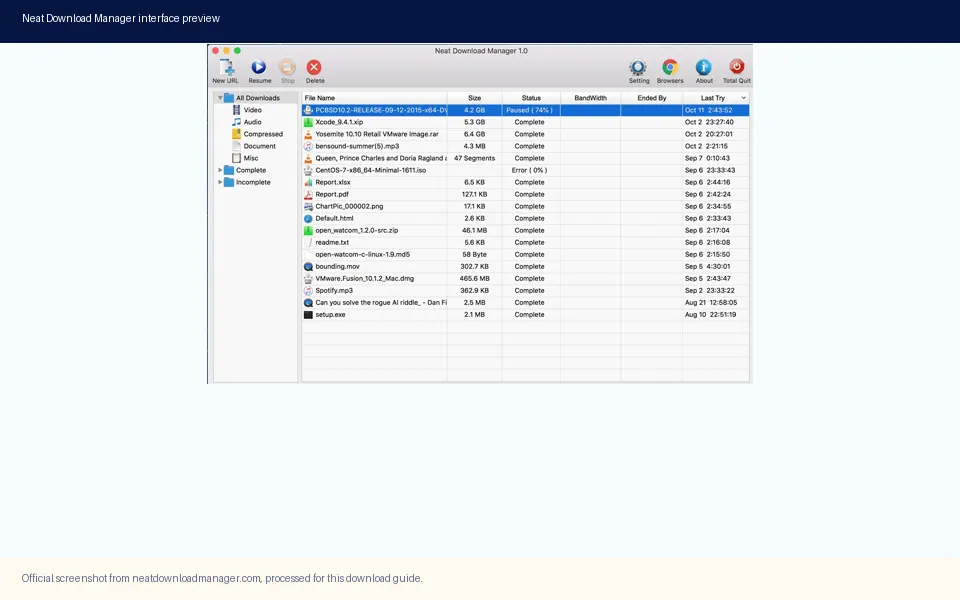
Official product screenshot. Brave hands a compatible link to this desktop application; the browser extension is not the transfer engine.
Question
Verified answer
What it does not prove
Can Brave load the NDM extension?
Use the official Chrome Web Store route in Brave when the browser permits it.
It does not create a separate Brave edition of NDM.
What performs the download?
The installed NDM desktop app receives the compatible link.
The extension cannot work as a standalone downloader.
Which desktop versions were checked?
Windows 1.4 and macOS 1.3 on the official page on 2026-11-08.
A later release must be checked at the official source again.
Will every site be captured?
Only links exposed in a compatible and permitted form can be handed off.
Protected, encrypted, expiring, or login-only media may still fail.
Install the Neat Download Manager Brave Extension in the Right Order
The order matters because the extension needs a local application to receive the link. Installing the browser add-on while the desktop app is absent can leave you with an apparently successful browser install but no useful handoff. Open NDM before testing so you can see whether a task arrives.
Use one variable at a time. Do not add a second capture extension, change connection counts, and test a protected video all in the same attempt. A small direct-file test gives you a clean baseline and makes the next troubleshooting step easier to choose.
Open the official NDM product page and install the Windows or macOS desktop app for your platform.
Launch NDM and confirm that it can create a normal download from a permitted direct file.
In Brave, open the official Chrome Web Store listing for the NeatDownloadManager extension.
Accept only the permissions and browser prompts you understand, then make sure the extension is enabled.
Restart Brave if it was open before the desktop app or extension was installed.
Test one small direct file and confirm that its name, destination, and transfer state appear in NDM.
Test Link Capture Before You Test Media Sites
A direct file from a public project or a source you control is the best first test. A page that opens a video player is not equivalent: it may involve several temporary requests, an account session, adaptive segments, or encrypted playback. If the ordinary file reaches NDM, the Brave-to-extension-to-desktop path is probably working even if a media page later refuses capture.
Record the exact URL type and message when a test fails. If Brave downloads the file normally but NDM never receives it, inspect the extension state, local app state, and browser permission prompt. If both Brave and NDM fail, investigate the source URL, permission, redirect, or network before reinstalling the app.
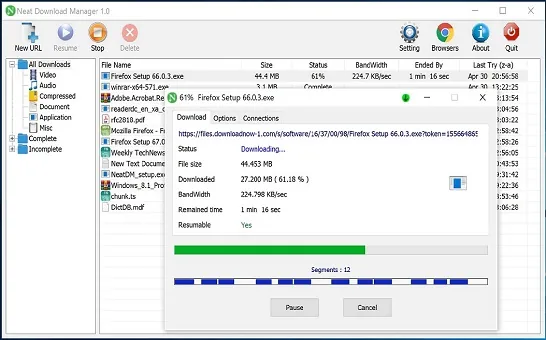
The desktop view below is useful as a visual checkpoint: a task should have a recognizable file name and a clear state. It is not a promise that every site will expose the same fields.
Official product screenshot. Use a normal direct file to establish this kind of repeatable task before diagnosing a protected site.
Browser succeeds and NDM receives the task: the basic handoff is working.
Browser succeeds but NDM receives nothing: check extension enablement, desktop app state, and Brave permissions.
Browser and NDM both fail: request a fresh permitted URL or investigate the source and network.
Only a protected video fails: treat it as a source-format or permission boundary, not automatic proof of a broken extension.
Brave Compared with Chrome, Firefox, and Edge
Brave shares Chromium extension conventions with Chrome and Edge, but its privacy controls and settings can change how a site or extension behaves. Firefox uses a different add-on ecosystem and therefore has a separate setup path on this site. The desktop NDM application remains the common dependency across these browser choices.
Choose the page that matches the browser you are actually testing. Do not install a random package that claims to be a Brave build simply because the search result contains the words Brave and NDM. Browser-specific instructions should point to a first-party store or the official product site.
Browser
Where to start
Main check
Brave
Chrome Web Store listing in Brave
Allow the extension source, keep NDM open, and test a direct file.
Chrome
Chrome Web Store listing
Confirm the extension is enabled and the desktop app is running.
Edge
Microsoft Edge Add-ons or the documented NDM route
Check browser handoff and site permissions.
Firefox
Firefox Add-ons listing
Use the Firefox-specific permissions and desktop-app path.
Troubleshoot a Brave Extension That Does Not Capture a Link
Begin with the smallest failed step. A missing extension icon, a closed desktop app, a browser permission prompt, a local port issue, and a protected URL can look similar to a new user, but they need different fixes. Work down the matrix and change one thing before repeating the direct-file test.
If the extension is installed but the app never sees a task, open NDM directly and check whether another process or security prompt is blocking it. If a public file works but one website fails, refresh the source page and obtain a new permitted URL. Do not modify a signed URL or bypass access controls to make the capture succeed.
If the problem appears as a port or communication error, use the site's port and extension troubleshooting pages. If the transfer starts and stops, use the error and speed guides to separate a source reset from a slow but healthy connection.
Symptom
Likely boundary
Next action
Extension installs but no task appears
NDM is closed, disabled, or blocked from handoff
Open NDM, verify the extension is enabled, then repeat a direct-file test.
Only one site fails
Temporary URL, login, referrer, or protected media
Request a fresh permitted link and compare the browser result.
Every direct file fails
Local app, network, disk, or security software
Test a small public file, check the app launch and free space, then inspect local blocks.
Brave shows a compatibility prompt
Browser policy or store setting
Read the prompt and use the official store listing; do not install an unknown package.
Task stops during transfer
Server reset, network change, or disk write
Record the message and use the error or speed troubleshooting order.
What Brave and NDM Cannot Guarantee
A browser extension does not grant permission to save content. A website may require an account, use a signed link that expires, deliver encrypted media, or intentionally prevent external download clients. In those cases the correct next step is the site's official download or export control, not a modified extension or an unverified mirror.
The same boundary applies to the phrase neatdownloadmanager extension page in brave. Finding a page URL is not the same as finding a direct media URL. A public post, player, or image gallery may generate the final resource only after scripts run, and the resource can disappear when the session changes.
Keep the source chain visible: official NDM desktop page, official extension store listing, a permitted file, and a repeatable result. That chain gives you enough evidence to decide whether the issue belongs to Brave, the extension, NDM, the source site, or the network.
Do not bypass login, regional, copyright, or server access controls.
Do not call a third-party installer official because it copies the NDM name or icon.
Do not treat a browser preview as proof that a download client supports the underlying stream.
Keep the official store and product URLs so a future version or policy change can be rechecked.
Version and Source Freshness Check
This site checked the official NDM product page and the two first-party desktop files on 2026-11-08. The page showed Windows ver 1.4 and macOS ver 1.3. The Windows setup file returned HTTP 200 with 917,340 bytes, and the macOS DMG returned HTTP 200 with 1,468,544 bytes. No newer desktop version was found during this check.
Those facts are a dated verification snapshot. Before a future reinstall, revisit the official product page rather than relying on a mirror's latest label. The Brave extension page intentionally has no download button for a made-up Brave installer: it points to the official store listing and the official desktop source instead.
A version update would change the platform facts, CTA notes, FAQ, and any installation instructions that mention the old files. Until an official source publishes a new value, keep the existing version fields unchanged and record the next check date.
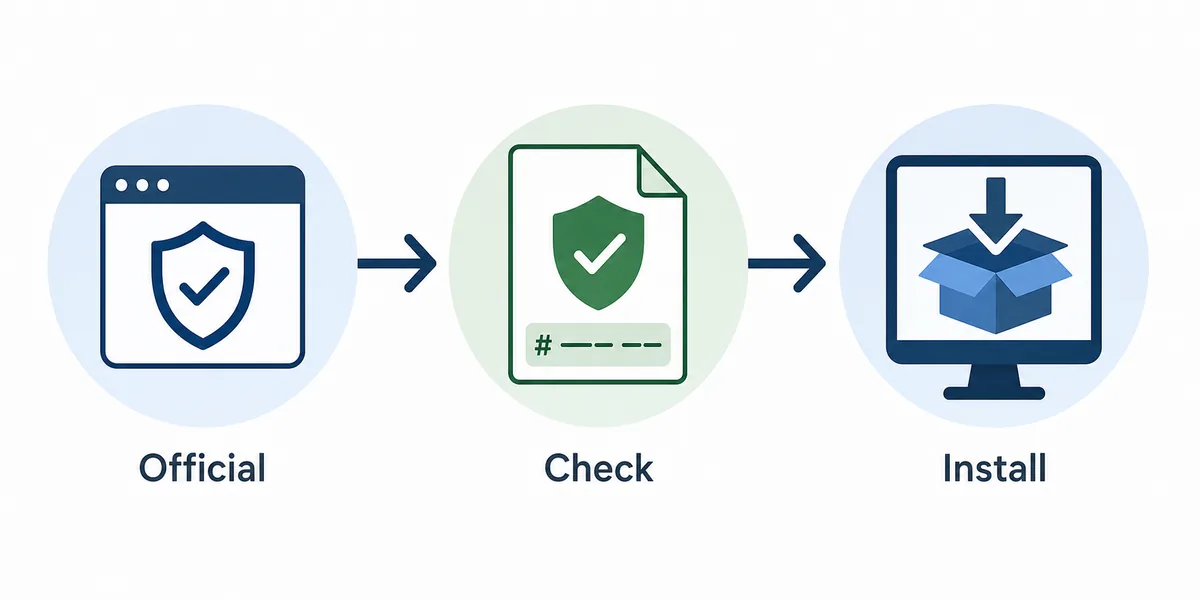
Editorial source-check diagram. Verify the publisher and file path before installing; it is not a real installer window.
Brave extension FAQ
Neat Download Manager Brave Extension FAQ
Can I use the Neat Download Manager extension in Brave?
Yes, Brave can use the Chromium extension route when the browser permits the official Chrome Web Store listing. Install and open the NDM desktop app first; the extension is only the browser handoff.
Is there an official Brave version of Neat Download Manager?
No separate Brave desktop installer was verified. The official product page publishes Windows and macOS desktop files, while Brave uses the browser extension listing and the installed desktop app.
Why does the extension work in Brave but not on one website?
The website may use a temporary, protected, encrypted, login-only, or non-direct media URL. Test a permitted direct file to separate a source limitation from a browser or app handoff problem.
Do I install the Brave extension before the desktop app?
Install and open the desktop app first, confirm a normal download works, and then add the official extension in Brave. This order gives the extension a running local application to receive links.
What should I do when Brave shows a compatibility prompt?
Read the prompt, confirm that the source is the official Chrome Web Store listing, and accept only permissions you understand. Do not replace the listing with an unknown extension package.
What versions were checked for the desktop app?
On 2026-11-08 the official NDM page showed Windows ver 1.4 and macOS ver 1.3. The verified first-party files returned HTTP 200; revisit the official page before a later reinstall.